Speaker Page Block Templates
Introduction
Each speaker page is made of section, and a section will contain multiple blocks. You can add custom text while adding or editing a speaker page. Often you will be re-using these blocks so it makes sense to instead create a template. There are two ways to create Block Templates:
- Through the dashboard
- While viewing a speaker page with an existing custom block content
Adding Blocks
Via Dashboard
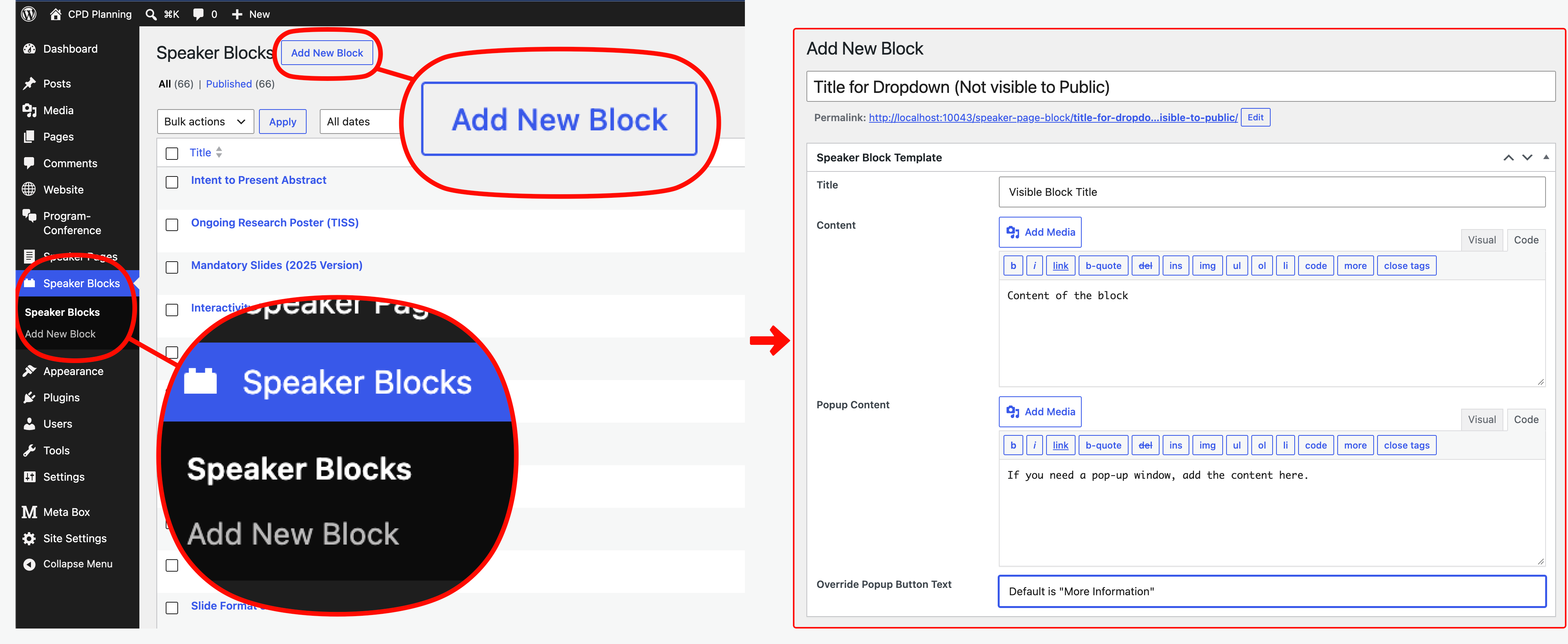
On the Wordpress Admin dashboard Select "Speaker Blocks" from the left menu then Add New Block. The fields that need to be completed are exactly the same as while create a custom speaker block on a new speaker page.
Via Speaker Page
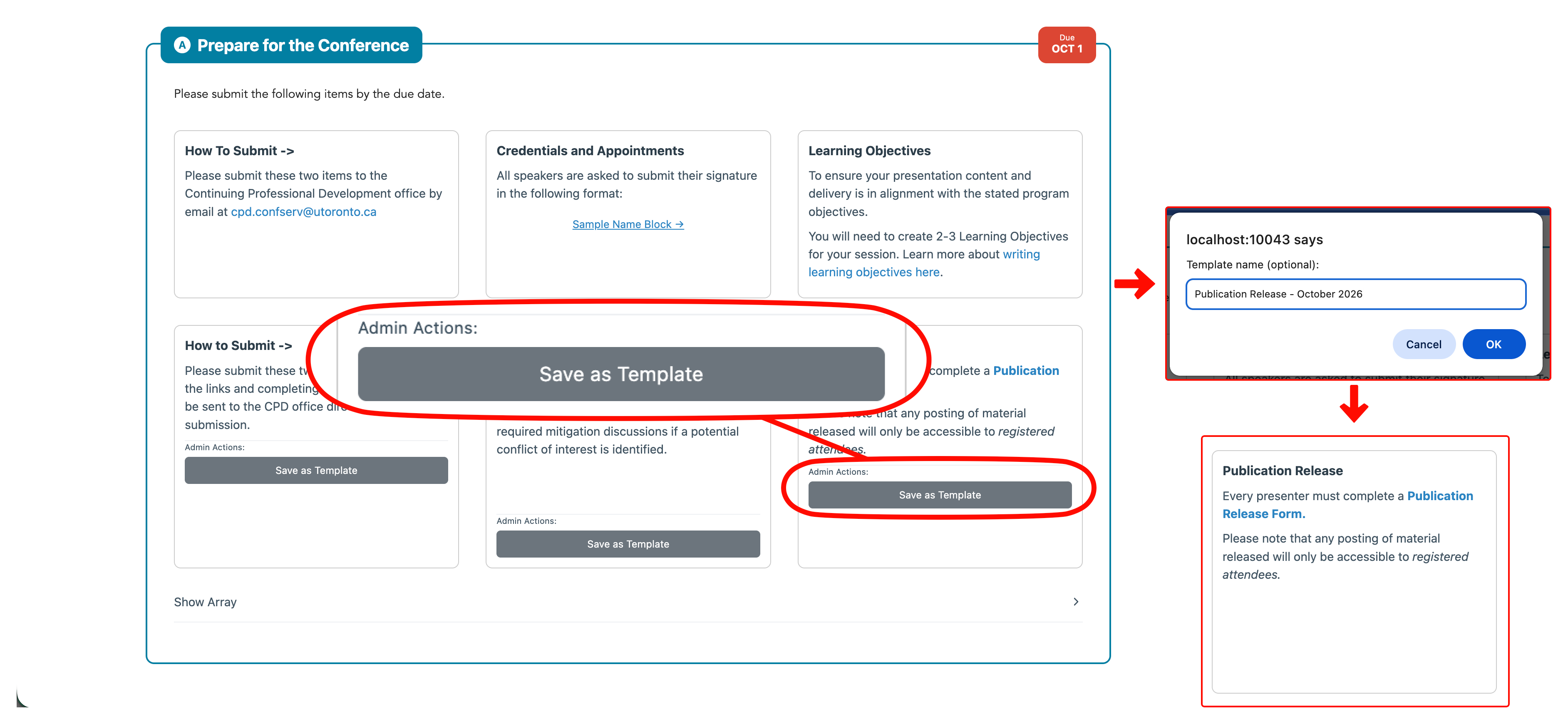
While logged in as an administrator and viewing a speaker page you will see "Save as Template" buttons in custom blocks that you have created. Once you click this button you'll be asked to name the block, this name is not public but rather used only in the dropdown while building a speaker page. It might make sense to add a date or "season" to the title, eg "How to Submit Documents (Oct 2026)"
Once you click ok, the new speaker block template will be created with the content used for the custom block. The custom block content will be removed and the new template linked.